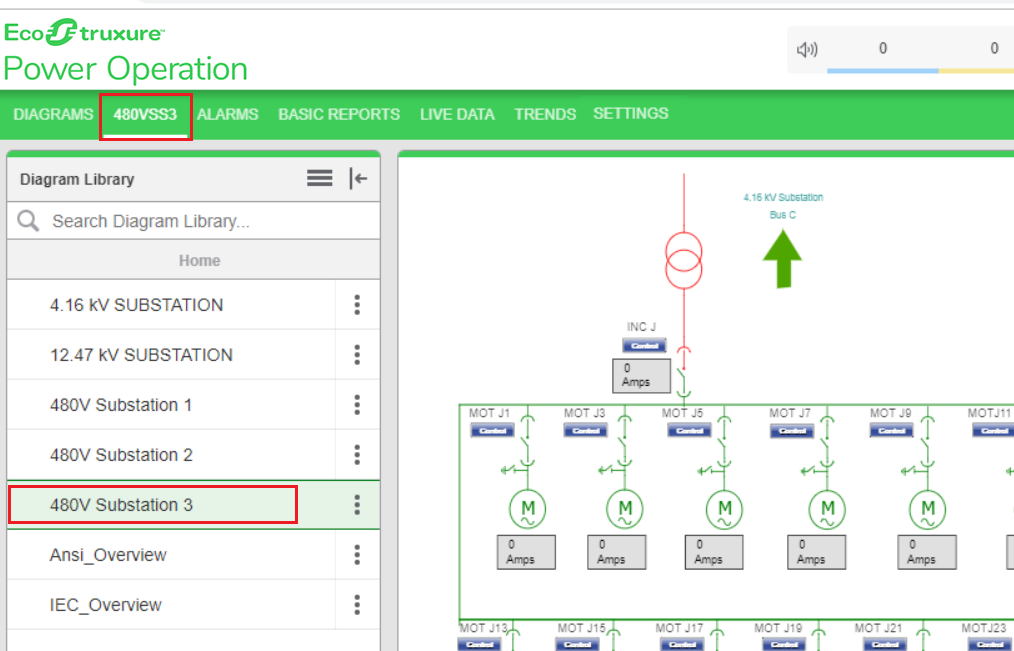
Adding a diagram to the menu bar
You can add a diagram to the menu bar and then use it to navigate to diagrams.
This topic uses an example to demonstrate how to accomplish this.
To add a diagram to the menu bar:
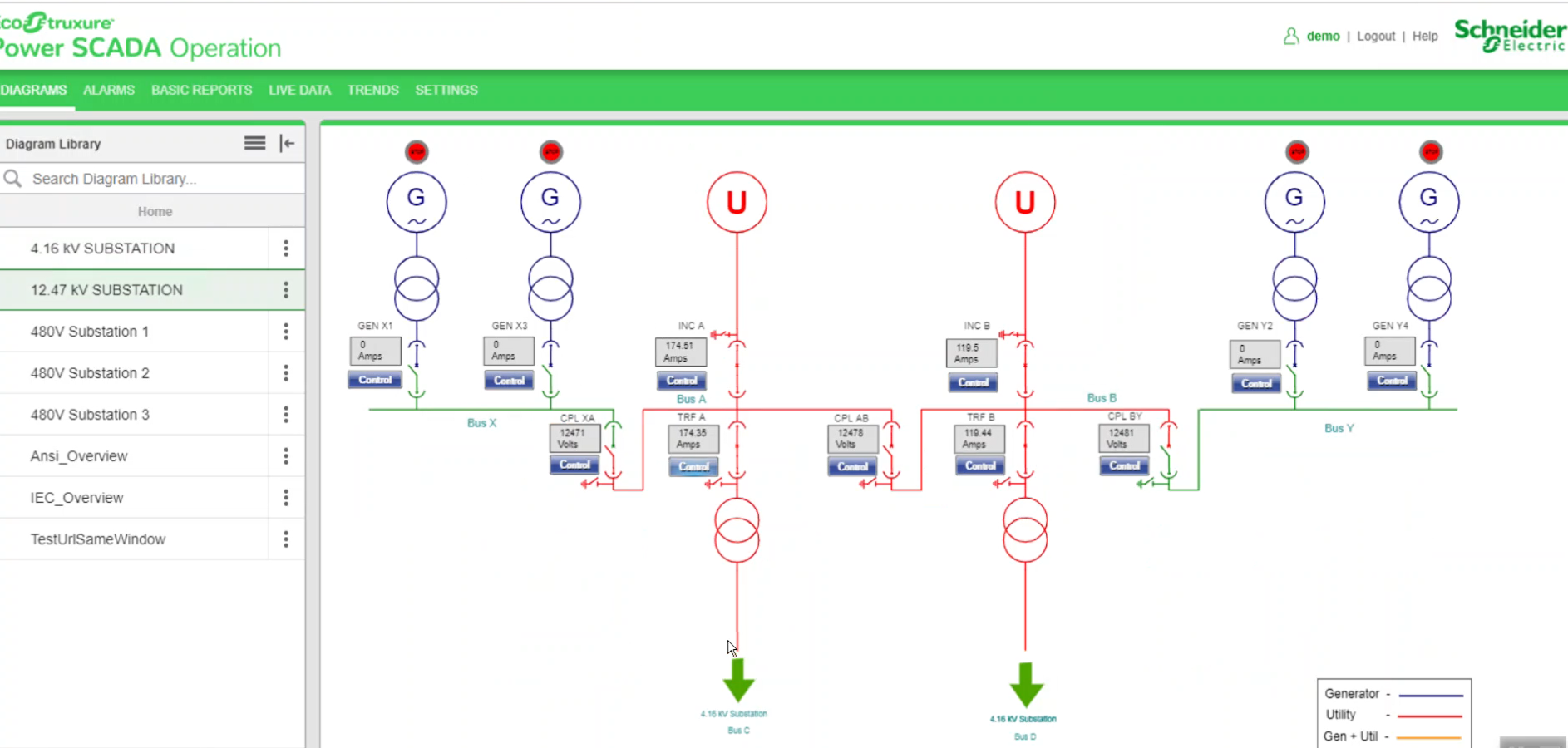
- Log in to PO Web Applications (https//localhost/webhmi or ipaddress/webhmi).
The following screen is displayed.
-
Example: A user wants to display 480V Substation 3 of Diagram Library Panel in the menu bar:
-
Go to File path: \Program Files (x86)\Schneider Electric\Power ScadaOperation\v2020\Applications\Web\SystemDataService\App_Data\Configuration as shown below.
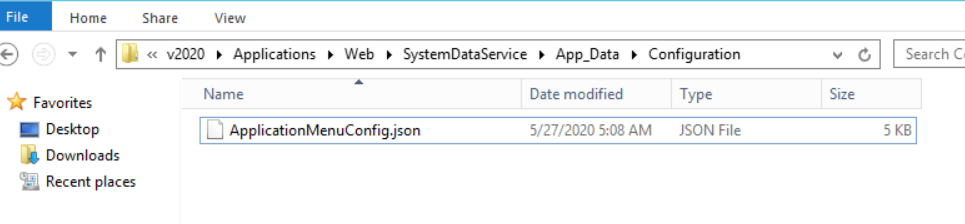
- In a text editor such as Notepad, open
ApplicationMenuConfig.json. -
Enter the code lines 22 to 31 for diagram navigation from new menu after
HmiApplicationcode:Copy"ApplicationsSettings": [
{
"Id": "HmiApplication",
"Description": "",
"DisplayName": "Diag_Application_Title",
"ResourceSet": "HmiApplication",
"Enabled": true,
"Target": "HmiTgml.aspx",
"IsFactoryApplication": false,
"RequiredPrivilege": null
},
{
"Id": "Alarms",
"Description": "",
"DisplayName": "AV_App_Title",
"ResourceSet": "AlarmViewer",
"Enabled": true,
"Target": "Alarms",
"IsFactoryApplication": false,
"RequiredPrivilege": "AlarmViewer.AccessApplication"
},
{
"Id": "480VSS3",
"Description": "",
"DisplayName": "480VSS3",
"ResourceSet": "HmiApplication",
"Enabled": true,
"Target": "HmiTgml.aspx/#lib/480v20substation2032etgml",
"IsFactoryApplication": false,
"RequiredPrivilege": null
},
-
-
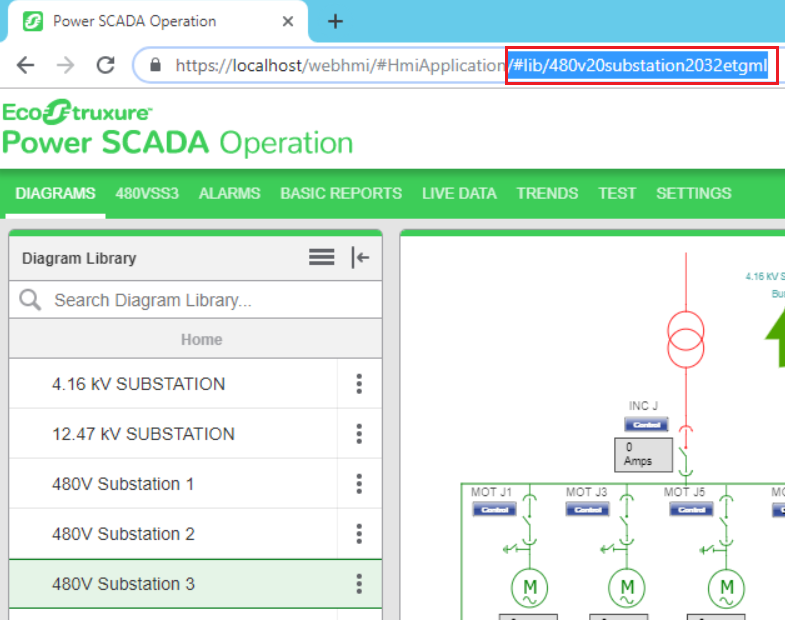
To get the
Targetvalue:-
In PO Web Applications (https://localhost/webhmi or ipadress/webhmi), from the Diagram Library click 480V Substation 3.
-
Copy the highlighted text from the URL as shown previous, and then paste in the
Targetfield in the JSON file as follows:
-
For
DisplayName, enter the required name to display in the menu bar.
- Save and close the JSON file.
-
- Go back to PO Web Applications, and then refresh the browser to display the newly-added menu.
The following image is displayed with the newly-added 480VSS3 menu of 480V Substation 3: